class 11
Images
Controlling the size and alignment of your images using CSS keeps rules that affect the presentation of your page in the CSS and out of the HTML markup.
You can control the size of an image using the width and height properties in CSS, just like you can for any other box.
Specifying image sizes helps pages to load more smoothly because the HTML and CSS code will often load before the images, and telling the browser how much space to leave for an image allows it to render the rest of the page without waiting for the image to download.
img.large {
  width: 500px;
  height: 500px;}
img.medium {
  width: 250px;
  height: 250px;}
img.small {
  width: 100px;
  height: 100px;}
alrItgIcnlIneg Images UsIng css
the float property can be used to move an element to the left or the right of its containing block, allowing text to flow around it.
img.align-left {
  float: left;
  margin-right: 10px;}
img.align-right {
  float: right;
  margin-left: 10px;}
img.medium {
  width: 250px;
  height: 250px;}
centering images Using css
By default, images are inline elements. This means that they flow within the surrounding text. In order to center an image, it should be turned into a block- level element using the display property with a value of block.
Once it has been made into a block-level element, there are two common ways in which you can horizontally center an image:
- On the containing element, you can use the text-align property with a value of center.
- On the image itself, you can use the use the margin property and set the values of the left and right margins to auto.
img.align-center {
  display: block;
  margin: 0px auto;}
img.medium {
  width: 250px;
  height: 250px;}
The background-image property allows you to place an image behind any HTML element. This could be the entire page or just part of the page. By default, a background image will repeat to fill the entire box.
body {
  background-image: url("images/pattern.gif");}
- When an image is not being repeated, you can use the
background-positionproperty to specify where in the browser window the background image should be placed.
contrast of Background Images
If you want to overlay text on a background image, the image must be low contrast in order for the text to be legible.
- high contrast: The majority of photographs have quite a high contrast, which means that they are not ideal for use as a background image.
- low contrast: Image editing applications such as Photoshop and GIMP have tools that allow you to manually adjust your images to have lower contrast.
-
screen: To overlay text on an image with high contrast, you can place a semi-transparent background color (or “screen”) behind the text to improve legibility.
- You can specify the dimensions of images using CSS. This is very helpful when you use the same sized images on several pages of your site.
- Images can be aligned both horizontally and vertically using CSS.
- You can use a background image behind the box created by any element on a page.
- Background images can appear just once or be repeated across the background of the box.
- You can create image rollover effects by moving the background position of an image.
- To reduce the number of images your browser has to load, you can create image sprites.
Practical information
- Search engine optimization helps visitors find your sites when using search engines.
- Analytics tools such as Google Analytics allow you to see how many people visit your site, how they find it, and what they do when they get there.
- To put your site on the web, you will need to obtain a domain name and web hosting.
- FTP programs allow you to transfer files from your local computer to your web server.
- Many companies provide platforms for blogging, email newsletters, e-commerce and other popular website tools (to save you writing them from scratch).
Video and Audio APIs
HTML5 comes with elements for embedding rich media in documents — <video> and <audio> — which in turn come with their own APIs for controlling playback, seeking, etc.
The <video> and <audio> elements allow us to embed video and audio into web pages.
<video controls>
  <source src="rabbit320.mp4" type="video/mp4">
  <source src="rabbit320.webm" type="video/webm">
</video>
Part of the HTML5 spec, the HTMLMediaElement API provides features to allow you to control video and audio players programmatically This interface is available to both <audio> and <video> elements, as the features you’ll want to implement are nearly identical.
Flash
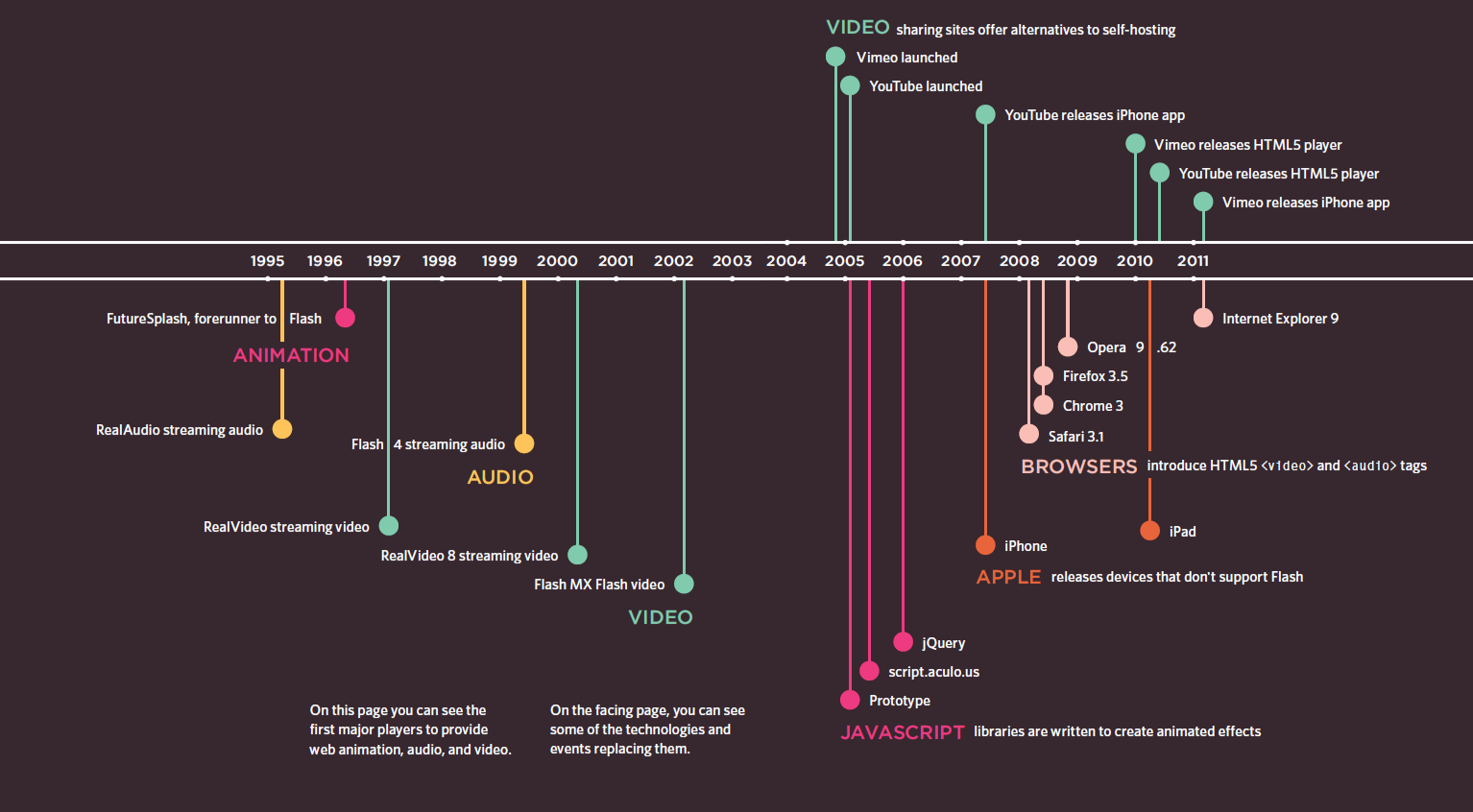
Flash is a very popular technology used to add animations, video, and audio to websites. This chapter begins by looking at how to use it in your web pages.
how Flash works
animation or a media player in Flash, the files you put on your website are referred to as Flash movies.
If you want to create your own Flash movie, you need to purchase the Flash authoring environment from Adobe.
There are, however, several companies that offer Flash animations and slideshows,
as well as video and audio players that you can use without purchasing this tool.
The Flash authoring environment is used to create Flash Movies.
When you create a Flash file in the Flash authoring environment, it is saved with the .fla file extension. In order to use this file on a web page it has to be saved in a different format known
as SWF. (It has the .swf file extension.)
When you export the movie into SWF format, Flash creates code that you can use to embed the Flash movie in your page. Traditionally, this code used the HTML <object> and <embed> tags. However, now it is more common to use JavaScript.
The .fla file is exported to .swf format to use in a web page.
To view Flash, browsers need
to use a plugin (an extra piece of software that runs in the browser) called the Flash Player.
Statistics commonly indicate that 98% of browsers on desktop computers have the Flash plugin installed. (The percentage of mobiles and tablets with it is much less.)
There is not space in this book to teach you how to create Flash movies (there are many books devoted to that one topic), but this chapter will show you how to add Flash movies to your site.
203 FLASH, VIDEO & AUDIO
The .swf file is included in your web page using JavaScript.